
AI Background Remover
Remove the background from any photo.
Upload a photo to the Zaps web editor and the AI separates your subject from what is behind it. Put the cutout on a color, another photo or a template, then keep designing in the same editor.
- Product photos
- Portraits
- Everyday objects
- New backgrounds
- Web editor
Runs in your browser, in the Zaps web editor.
What is an AI background remover
An AI background remover finds the subject in a photo and erases everything behind it.
Zaps has a background remover as its own tool in the web editor. Open a photo, run the tool, and the subject is cut out of its background. Place it on a solid color, a different photo or a template. It suits product shots, profile pictures and social graphics.
Best for
Product shots, portraits, objects
Where
The Zaps web editor
Next step
Add a new background or template
Cleanest when
The subject is sharp and stands apart
Why people search for this
A busy background makes a good subject harder to use.
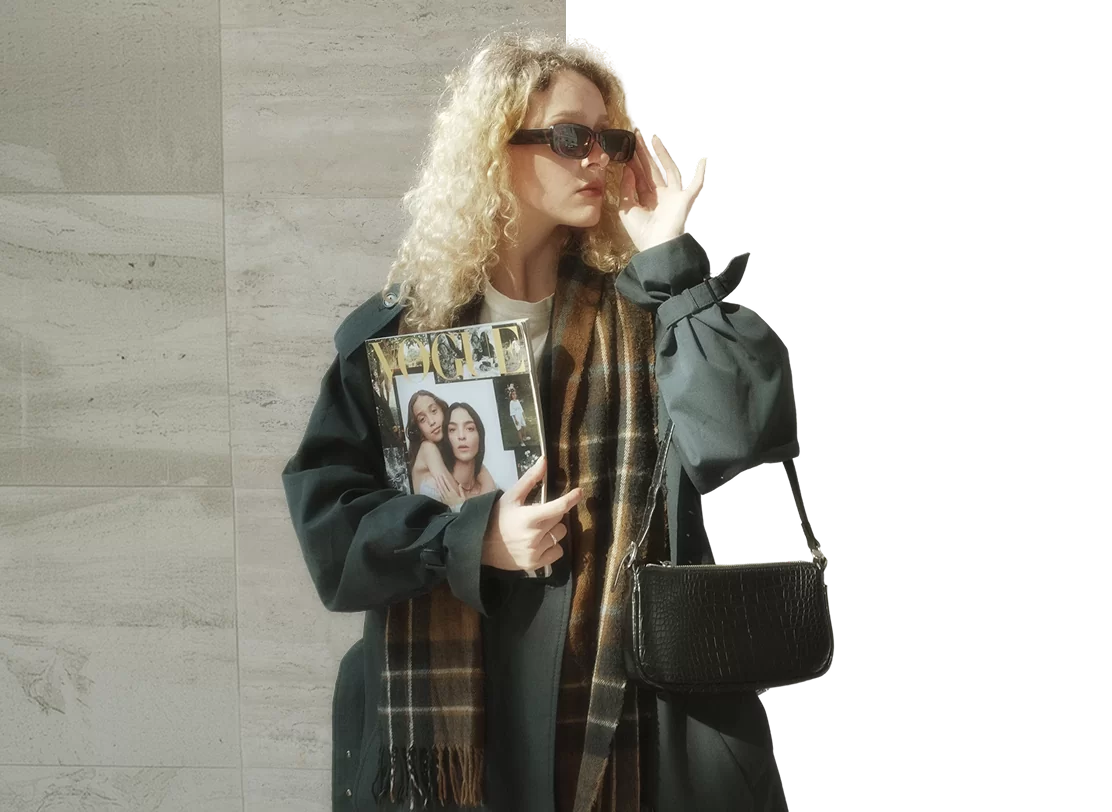
Subject cutout
Separate the subject in one step.
Run the background remover on a person, a product or an object and the AI keeps the subject and clears the rest. You do not trace an outline or paint a mask.
- Works on people, products and everyday objects
- Starts from any photo you upload
- Opens as its own tool in the editor
- Leaves you a cutout to place anywhere
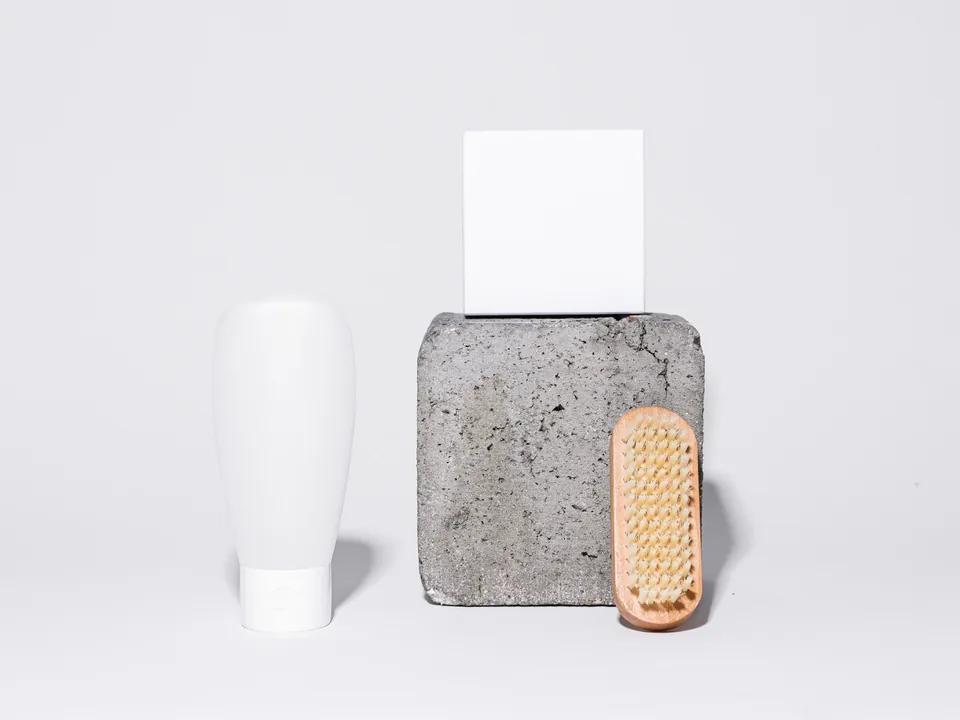
Product photos
Take the product out of the room it was shot in.
Photograph the item wherever the light is good, then cut it out and set it on a color or layout that matches your brand. One clean cutout can serve a launch post, an offer and a menu card.
- Remove counters, tables and clutter
- Set the product on a solid color
- Reuse one cutout across several posts
- Pair it with a Zaps template

Portraits and profile pictures
A plain backdrop for a profile picture.
Cut yourself out of a busy room and put a color behind you that suits your profile, your team page or your creator thumbnail. A clear outline and a subject that stands apart from the backdrop give the cleanest edges.
- Profile pictures and avatars
- Team and founder graphics
- Creator thumbnails
- Announcement posts
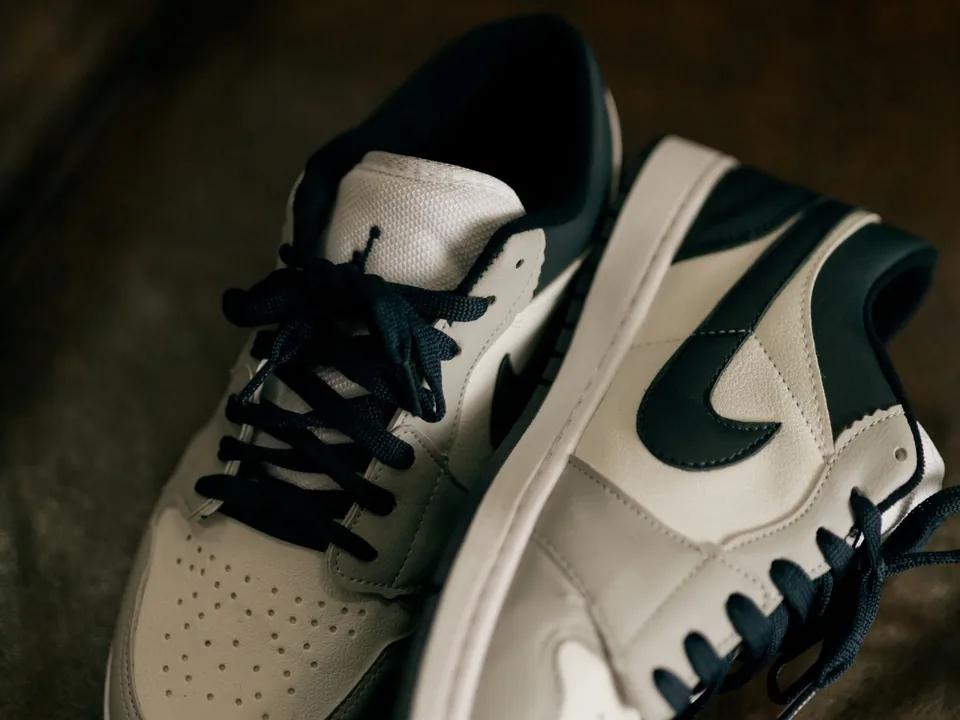
New backgrounds
Put the cutout somewhere better.
After the cut, the subject is yours to place. Set it on a brand color, over a second photo or inside a Zaps template, then add text on top.
- Solid brand colors
- Another photo as the backdrop
- Zaps templates
- Text and stickers over the cutout
Cleaner results
Know when it works best.
The AI has to tell the subject from the background. A sharp, well-lit subject gives a clean edge. Fine hair, glass and busy scenes can leave rough edges that need a second look, and a low-quality photo makes that harder.
- Start from a sharp photo
- Avoid a background that matches the subject color
- Check the edges around hair and transparent objects
- Try AI Enhance first on a soft photo
Use cases
Cutouts for the things you post.
Product listings
Lift the item off a messy surface and set it on a clean color for a shop post or a menu card.
Profile pictures
Swap a cluttered room for a plain backdrop on an avatar or a team page.
Thumbnails and covers
Make the subject stand out against a bold color on a cover or a video thumbnail.
Business promos
Put a product or a person into an offer, a launch or an announcement.
Collages
Combine cutouts from different photos into one layout.
Creator edits
Build stickers, story graphics and layered edits from your own photos.
How it works
Remove a background in four steps.
1
Open the editor
Choose Remove a background to open the Zaps web editor.
2
Add your photo
Upload a photo with a clear person, product or object.
3
Run the background remover
The AI cuts the subject out of its background.
4
Place the cutout
Set it on a color, a photo or a template, add text, then export.
Why Zaps
Cut it out and finish the design in one place.
Cutout-only tools
- Hand you a cutout and stop there
- Need another app for layout and text
- Make you re-upload the file to design with it
Zaps background remover
- Cutout and design in the same editor
- Place the subject on colors, photos or templates
- Add text and stickers on top
- Opens in the browser with nothing to install
More from Zaps
More tools for your photos.
Frequently asked questions
Open the Zaps web editor, add your photo and run the background remover. The AI cuts the subject out of its background, and you can then place it on a new color, photo or template.
Yes. It is its own tool in the Zaps web editor, so there is nothing to install. Zaps also has background removal in its iPhone and Android app.
The Zaps pricing page lists background remover as a paid feature, so you may be asked to choose a plan. Check the Pricing page for current plans.
Photos where the subject is sharp, well lit and stands apart from the background give the cleanest cutouts. People, products and everyday objects all work.
Yes. After the cut you can place the subject on a solid color, over another photo or inside a Zaps template, and add text on top.
Yes. Cut the product out of the original scene, then set it on a plain color or a branded layout for a listing, a promo or a menu card.
Fine hair, glass, shadows and busy backgrounds are the hardest cases. Try a sharper or higher-resolution photo, or run AI Enhance on it first, then cut it out again.
Cut it out. Then make it yours.
Add a photo, remove the background and build the post in the Zaps web editor.